Your first evening with a Samsung TV.
Sit where you can see the whole screen. Have the television remote and your phone within reach. You can do the first two steps before ordering.
1. Find the model code
Open Settings on the television, look in Support, then About This TV. Some older menus say Contact Samsung. Write down the model code and your viewing country. If the menu is hard to find, check the purchase paperwork or the product label if it is easy to reach. Leave a wall-mounted television in place.
If you photograph a label, cover the serial number first. The model code identifies the product family. The serial number identifies your individual set. Samsung’s model and serial number guide
2. See what the TV can install
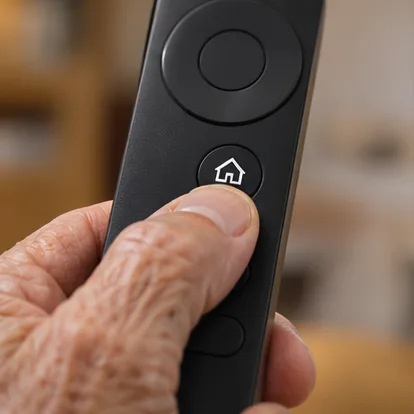
Press Home and look for Apps or Search. Menu names move between model years. Look up the player that support suggests and compare the publisher name before choosing Install. Check any player licence fee on the listing. Open the installed app and note its welcome screen.
Samsung’s US store lists OttPlayer and Smart IPTV OTT Player. Check which appears on your model. The player alone comes without a viewing subscription.
If you already have a player, leave it installed. Read the exact name to support and ask whether it accepts the access offered. If there is no Apps menu, send your model code before purchasing any external streaming device. Samsung’s app installation guide
3. Match the login to the screen
A playlist screen takes a playlist address. An account screen can ask for a server address, username and password in separate boxes. A pairing screen may show an activation code. Ask support which route fits your purchase. Enter the details only in the confirmed app or its official pairing page. Never send account passwords in a screenshot.
4. Play, then find your way back
Open the Live section and choose one channel. Change channels once to learn how to return to the guide. Then open a film, pause it, and check sound and subtitles. Choose a favourite so you can find something familiar after turning the television off and on again.
If one channel fails, try another. If everything fails, open a different internet app on the same TV. Tell support which test worked. Get help with a specific screen